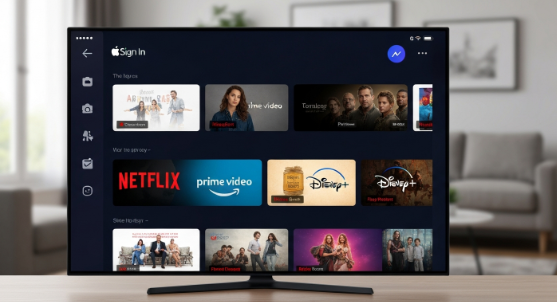
Apple TV Sign In is a versatile streaming device that allows users to access a wide range of content, including movies, TV shows, and live events. One of the key steps to using Apple TV effectively is signing in with your Apple ID. This step ensures access to purchased content, personalized recommendations, and synchronization across devices. Whether you are a new user or switching devices, understanding how to sign in to Apple TV is essential for an optimal viewing experience.
What You Need Before Signing In
Before signing in to Apple TV, there are a few requirements you should be aware of. First, you need an Apple ID. An Apple ID serves as your account for accessing Apple services, including iCloud, Apple Music, and the App Store. If you do not have one, you can create it through the Apple website or directly from your device.
Secondly, ensure your Apple TV is connected to the internet. Without an active Wi-Fi or Ethernet connection, signing in will not be possible. A stable internet connection is important to prevent interruptions during the sign-in process.
Lastly, make sure your Apple TV is updated to the latest software version. Apple periodically releases updates that improve device performance, security, and compatibility with streaming apps. To check for updates, navigate to Settings > System > Software Updates and install any available updates.
How to Sign In Using Apple ID
Signing in to Apple TV is a straightforward process. Here’s a step-by-step guide:
- Turn on your Apple TV and navigate to the Home screen.
- Open the Settings app from the home menu.
- Scroll down and select Users and Accounts.
- Click on Add New User if you do not have an account already linked.
- Choose Sign In and enter your Apple ID and password.
- If two-factor authentication is enabled, enter the verification code sent to your trusted device.
- Once signed in, your Apple ID will be linked, and your personalized content will become available.
After signing in, Apple TV will sync your purchased movies, TV shows, and subscriptions, allowing you to continue watching across multiple Apple devices.
Sign In Using the Apple TV Remote
For users who prefer using the remote, Apple TV allows convenient sign-in with the Siri Remote or Apple TV Remote. Once you select the sign-in option, use the on-screen keyboard to enter your Apple ID credentials. The remote’s touchpad makes scrolling through letters and numbers easy. For faster input, you can also use the Apple TV Remote app on your iPhone or iPad, which allows typing using your device’s keyboard instead of navigating letter by letter.
Sign In Using a Mobile Device
Apple TV supports signing in via mobile devices for a quicker process. This method uses a six-digit code displayed on your Apple TV screen. Here’s how it works:
- Open the Apple TV Remote app or the Settings app on your iPhone/iPad.
- Go to Sign In Using Device.
- Enter the six-digit code displayed on the Apple TV screen into your device.
- Your Apple ID will be verified, and your Apple TV will automatically log in.
This method reduces the need to manually type your Apple ID on the TV, providing a faster and more secure way to access content.
Using Family Sharing with Apple TV
If you are part of a Family Sharing plan, signing in becomes even more beneficial. Family Sharing allows multiple users to share purchased movies, TV shows, subscriptions, and Apple Music accounts. Once signed in, you can access content purchased by other family members. To set this up, ensure the family organizer has configured Family Sharing through Settings > Users and Accounts > Family Sharing. Each family member can then sign in to Apple TV with their own Apple ID and enjoy shared content seamlessly.
Common Sign-In Issues and Solutions
While signing in is generally simple, users may occasionally encounter problems. Some common issues include:
Incorrect Apple ID or Password
If you receive an error stating that your credentials are invalid, ensure that you are entering the correct Apple ID and password. If you have forgotten your password, visit the Apple website to reset it.
Two-Factor Authentication Issues
If you have two-factor authentication enabled but do not receive the verification code, check your trusted devices or phone number associated with your Apple ID. You may also request the code via text or call.
Network Connectivity Problems
Apple TV requires a stable internet connection to sign in. If the device cannot connect, try restarting your router or connecting via Ethernet instead of Wi-Fi.
Software Glitches
Occasionally, a software glitch may prevent signing in. Restarting your Apple TV or updating the software often resolves this problem.
Apple ID Already in Use
If the Apple ID is already linked to another Apple TV, ensure you log out from the other device before signing in. Multiple devices can use the same Apple ID, but simultaneous active sessions may occasionally cause conflicts.
Signing In to Apple TV+ and Other Apps
Once you have signed in with your Apple ID, you gain access to Apple TV+, Apple’s exclusive streaming service offering original shows and movies. Additionally, many third-party apps like Netflix, Hulu, and Disney+ allow you to sign in using your Apple ID credentials if they support Apple Single Sign-On. This feature simplifies authentication across multiple apps without needing to enter separate usernames and passwords.
Benefits of Signing In to Apple TV
Signing in to Apple TV offers numerous advantages. First, it ensures seamless access to your purchases, allowing you to watch previously bought movies or TV shows without repurchasing.
Second, signing in syncs your watch history and preferences across devices. For example, if you start watching a show on your iPhone, you can pick up where you left off on Apple TV.
Third, it enables personalized recommendations based on your viewing habits. Apple TV learns what you enjoy watching and highlights content you may like.
Finally, signing in is essential for accessing subscriptions and services, including Apple Arcade, Apple Fitness+, and Apple Music, making Apple TV a complete entertainment hub.
Managing Multiple Accounts
Apple TV allows multiple user accounts, which is useful for households where each member wants a personalized experience. To manage accounts:
- Go to Settings > Users and Accounts.
- Select Add New User to create another account.
- Use the Switch User feature to change accounts quickly.
Each user retains their own watch history, recommendations, and library. This prevents content overlap and ensures a tailored experience for everyone in the household.
Tips for a Smooth Sign-In Experience
- Keep Apple ID Information Updated: Ensure your Apple ID email and password are current. Update security questions and trusted devices regularly.
- Enable Two-Factor Authentication: This enhances security, preventing unauthorized access.
- Use the Remote App for Easier Input: Typing on the Apple TV remote can be tedious; using your iPhone’s keyboard is faster.
- Regularly Check for Updates: Software updates often fix bugs related to sign-in and improve overall performance.
- Maintain Stable Internet Connectivity: Avoid interruptions by using a strong Wi-Fi signal or wired Ethernet connection.
Conclusion
Signing in to Apple TV is a crucial step to unlocking its full potential. By using your Apple ID, you gain access to purchased content, personalized recommendations, Apple TV+, and other Apple services. While occasional sign-in issues may arise, most problems can be resolved through password recovery, software updates, or network troubleshooting. With multiple accounts and Family Sharing, Apple TV becomes an inclusive entertainment solution for all household members.
Proper management of Apple ID and secure sign-in practices ensures a smooth experience, allowing users to enjoy streaming without interruptions. Apple TV’s integration with iPhone, iPad, and other Apple devices enhances convenience, making content access simple, fast, and secure.
FAQs
Q1: Can I sign in to Apple TV without an Apple ID?
No, an Apple ID is required to access Apple services, purchases, and personalized content on Apple TV.
Q2: How do I sign in if I forgot my Apple ID password?
You can reset your password by visiting Apple’s website and following the “Forgot Apple ID or password” instructions.
Q3: Can multiple users sign in to the same Apple TV?
Yes, Apple TV allows multiple accounts. Each user’s watch history, preferences, and purchases are kept separate.
Q4: What should I do if my Apple TV won’t accept my credentials?
Check your Apple ID and password, ensure internet connectivity, and make sure two-factor authentication codes are entered correctly.
Q5: Can I use Apple ID to sign in to third-party apps?
Yes, Apple TV supports Apple Single Sign-On, allowing you to access compatible apps like Netflix or Hulu with your Apple ID credentials.