Introduction
|
Editorial TeamSpecializing in mobile technology and software documentation, our team provides verified technical guides for Android users worldwide. |
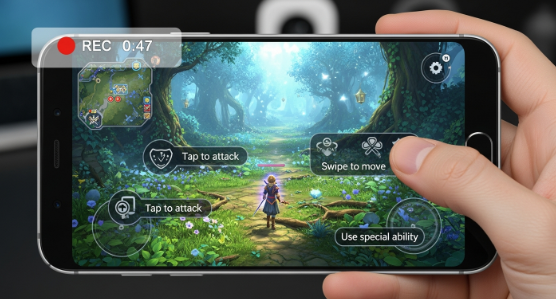
Screen recording on Android facilitates the capture of every digital interaction occurring on your mobile device. This functionality is essential for saving gameplay, creating professional tutorials, archiving video calls, and demonstrating application features. While modern devices feature integrated recording software, advanced users often utilize third-party tools for enhanced precision and control.
Understanding Android Screen Recording
Screen recording refers to the real-time capture of visual activities displayed on a smartphone screen in a high-definition video format. This includes application usage, web browsing sessions, instant messaging, and system configurations. Modern operating systems provide native controls, while specialized software offers additional flexibility depending on the professional requirement.
Utilizing Default Native Tools
Most contemporary Android smartphones are equipped with built-in recording capabilities accessible through the system UI. Users can initiate a session by accessing the Quick Settings panel and selecting the screen recorder icon. During the initialization phase, users can configure audio input preferences. Upon completion, the video file is automatically exported to the system gallery.
Operational Procedures
- Swipe downward to access the Quick Access Panel.
- Identify the Screen Record toggle.
- Tap the icon to initiate the recording interface.
- Define audio preferences (Internal Sound, Microphone, or Muted).
- Select Start to begin capturing screen activity.
- Upon conclusion, select Stop to finalize the file storage.
Advanced Configuration and Quality Optimization
For high-performance results, especially in gaming and professional demonstrations, consider the following technical adjustments:
| Feature | Recommendation | Benefit |
|---|---|---|
| Frame Rate | 60 FPS | Ensures fluid motion in gaming content. |
| Resolution | 1080p or Native | Maintains visual clarity on high-res displays. |
| Audio Source | Internal + Mic | Combines game sound with verbal commentary. |
Third-Party Software for Power Users
When native tools do not meet specific requirements, third-party applications provide superior features such as frame rate adjustment, floating control widgets, and front-camera overlays. These tools are preferred by content creators for high-resolution exports and unlimited recording durations.
Troubleshooting and Best Practices
To ensure a seamless recording experience, users should clear background processes to prevent performance degradation. Enabling ‘Do Not Disturb’ mode is critical to avoid private notification pop-ups during the capture process. In instances of recording failure, verify system permissions for the microphone and storage access.
Conclusion
Mastering screen recording on Android allows you to share knowledge, archive important moments, and create high-quality content with ease. Whether utilizing integrated system tools or advanced third-party software, the key to professional results lies in proper configuration and preparation. By following the techniques outlined in this guide, you can confidently produce clear, engaging, and professional-grade screen captures for any purpose.
Frequently Asked Questions
Native screen recording is standard on Android 11 and above. For older versions, third-party applications from the Google Play Store are required.
Yes, modern Android versions allow the capture of internal system sound, though certain applications may restrict this due to privacy or copyright policies.
Files are typically stored in the ‘Movies’ or ‘ScreenRecorder’ directory within the internal storage and can be accessed via the Gallery or File Manager.
Lag is usually caused by insufficient system memory, high CPU usage from background apps, or recording at a resolution higher than the hardware supports.
There is generally no software-imposed limit; the duration is restricted only by the available storage space and remaining battery life of the device.

